|| Capstone Tools & Tips
While additional Capstone tools and tips are discussed here, a review of setting up Capstone can be found at Capstone within || Data Acquisition & Analysis in Excel & Capstone.
Sensor Precision & Notes
Time measured by PASCO photogate --- stated precision of 0.0001 seconds.
Force measured by PASCO High-Resolution Force Sensor --- stated precision of 0.002 N.
Recording Data (No need to delete)
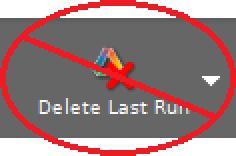
Figure 1:DO NOT DELETE DATA RUNS.
Plot Toolbar Tools

Figure 2:Autoscale axes tool.
Curve Fitting Procedure
● Apply the Fit
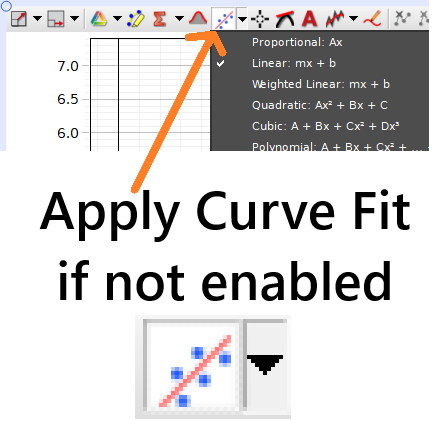
Figure 3:Capstone process for applying fits to plotted data.
● Set Y-intercept to Zero if Needed
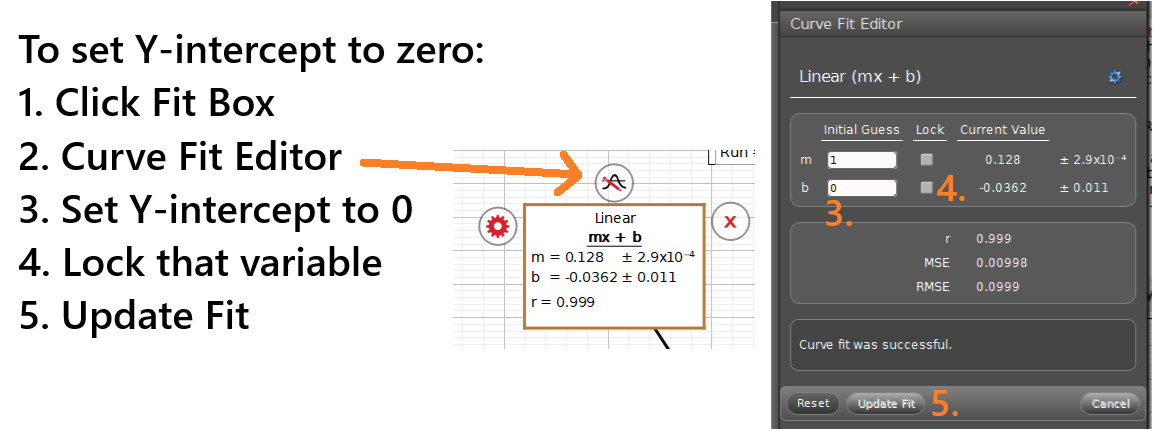
Figure 4:Capstone process for updating the y-intercept of a linear fit. Bottom) The fit tool can be both enabled/disabled by clicking the main area of the button. Then, the little black arrow provides a dropdown menu with many fit options you from which you can choose.
● Change Sig. Figs. if Needed
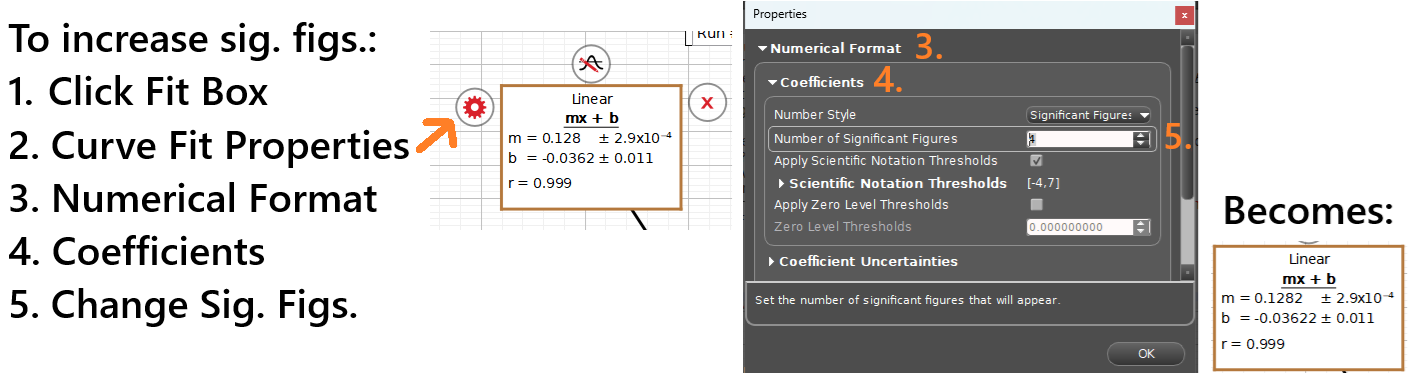
Figure 5:Capstone process for updating the significant figures (sig. figs.) of a linear fit.
Replay/display Previous Data Run
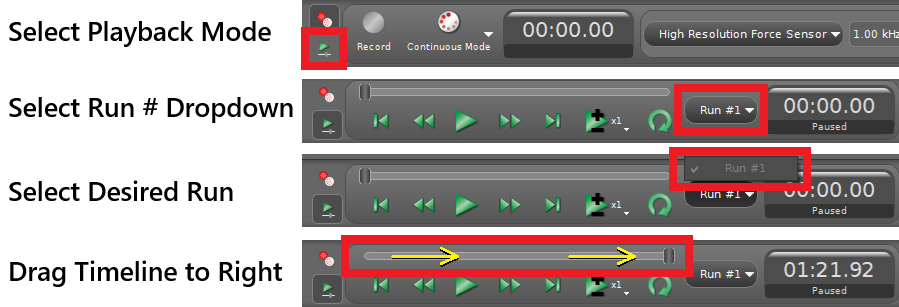
Figure 6:Process for returning to previous run in Capstone.